
Head over to Circles .
Click on Create a Circle

1. Set Circle’s Name and Description

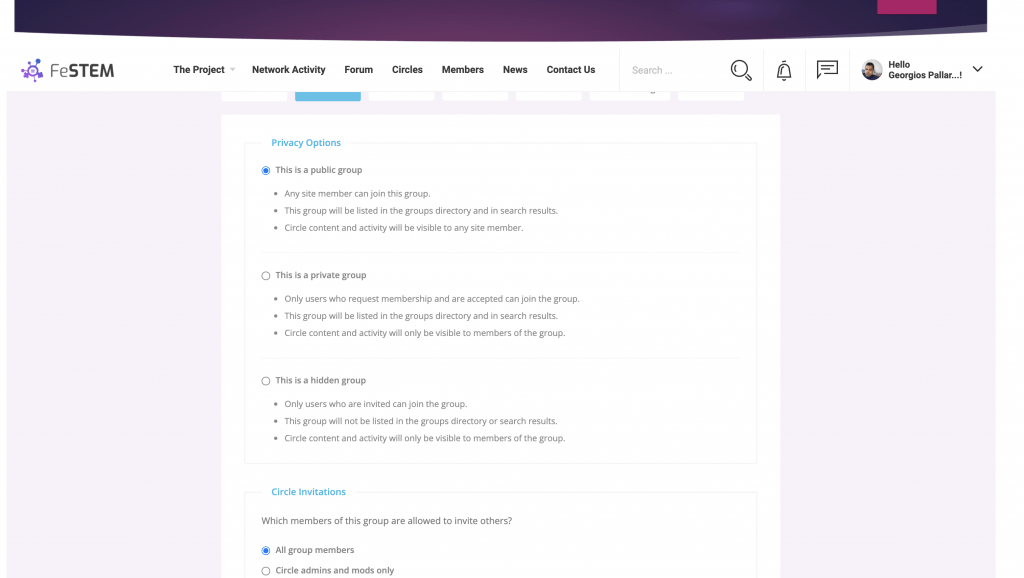
2. Set Circle’s Privacy and Circle Invitations Settings
Public group
- Any site member can join this group.
- This group will be listed in the groups directory and in search results.
- Circle content and activity will be visible to any site member.
Private group
- Only users who request membership and are accepted can join the group.
- This group will be listed in the groups directory and in search results.
- Circle content and activity will only be visible to members of the group.
Hidden group
3. Create a discussion forum to allow members of this group to communicate in a structured, bulletin-board style fashion.

4. Enable/Disable Docs
Docs is a powerful tool for collaboration with members of your circle. A cross between document editor and wiki, Docs allows you to co-author and co-edit documents with your fellow circle members, which you can then sort and tag in a way that helps your circle to get work done.

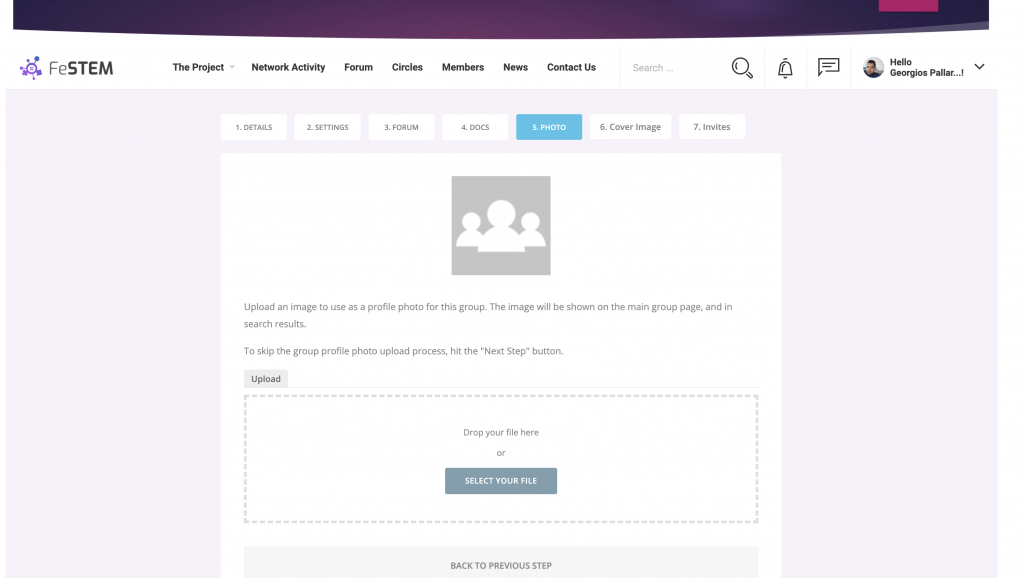
5. Upload an image to use as a profile photo for your Circle.
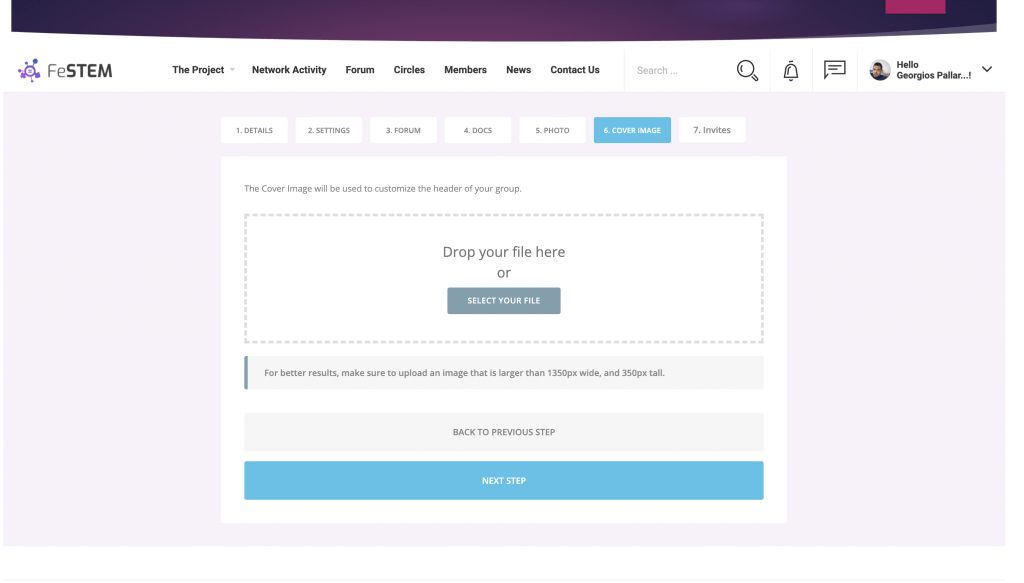
6. Upload a Cover Image that will be used to customize the header of the circle.
7. Select people to invite from your friends list.